 ivyify
A product video can show how an item moves, fits into a room or works in someone's hands. A useful video carousel puts that explanation near the product information, with a clear path back to the item being shown.
This guide uses Ivyify: Shoppable Videos. It covers uploading your own clips and displaying them on product pages. You do not need to connect a social account.
1. Start with a clip that answers a product question
Choose one question for the first video: How does the clasp open? What fits inside the bag? How does the fabric move? A focused clip is easier to check than a compilation covering many unrelated products.
Use footage you own or have permission to use. Check that the product shown matches the item currently for sale, including its color, accessories and packaging. Review the upload requirements shown in the app before exporting a large file.
You can start with one video and add more after checking the first one on a real product page.
2. Upload and review the product links
Open Ivyify: Shoppable Videos in Shopify Admin and upload your clip. The app can match videos to catalog products with AI. Treat those matches as suggestions to review: similar colors or packaging do not always identify the same product.
Check the linked products and adjust them where needed. A video showing a bag should link to that bag rather than a similar accessory. If the video genuinely demonstrates several products, review each association separately.
Publish the video when the content and its product links are ready.
3. Add the app block to the right product template
Open Shopify's theme editor and select the product template you want to update. Add the Shoppable Videos app block where your theme supports app blocks, then save the template.
Check which products use that template. Saving a block on one template does not add it to a different template used by another product.
If the block is unavailable in the selected section, check your theme's support for app blocks and try a supported section. For setup help, contact support with the theme name and the product URL.
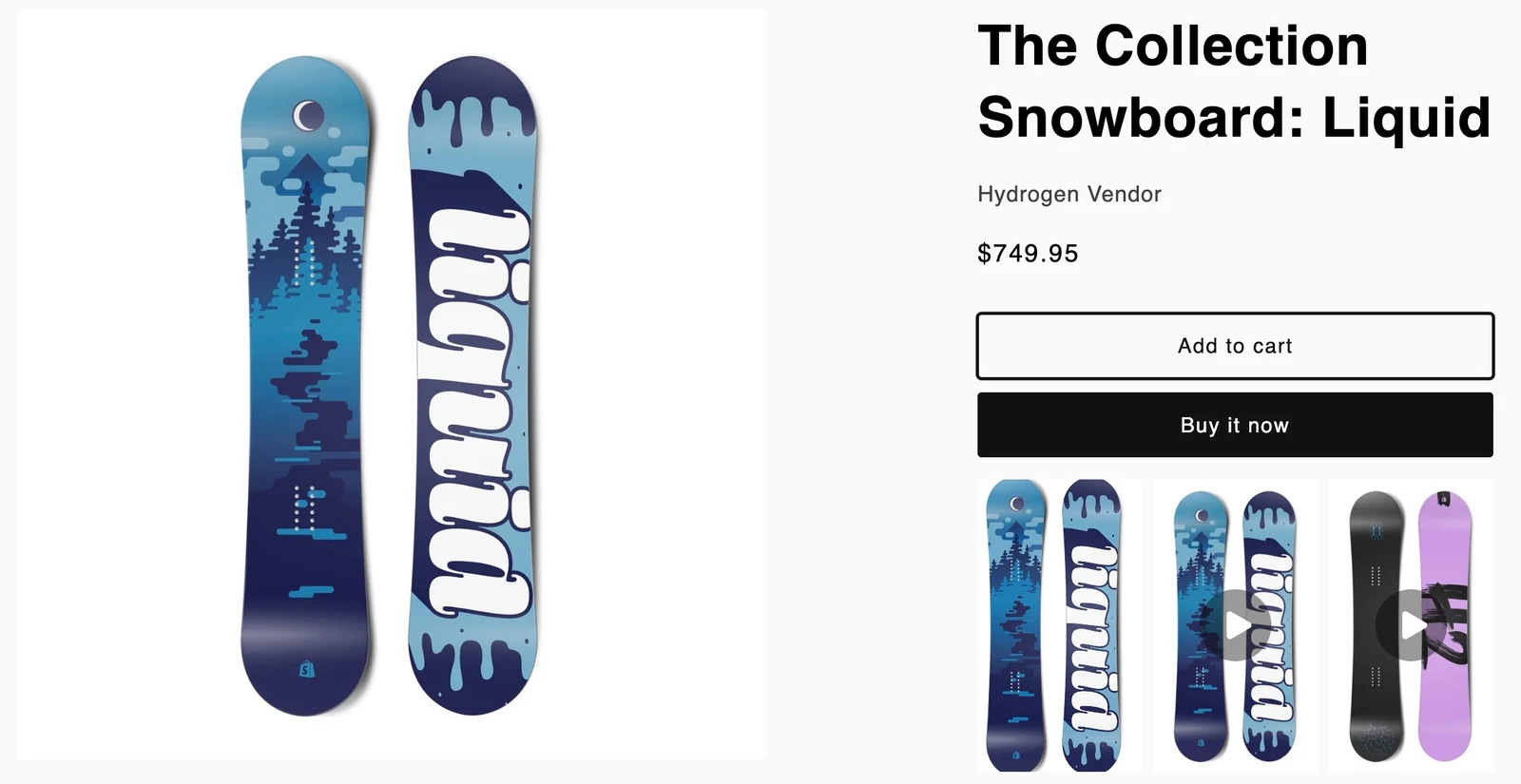
Example from an Ivyify demo store, using demo products.
4. Test the actual storefront
Open a product page outside the theme editor and check:
- The correct published videos appear for that product.
- Playback and switching between videos work on a phone as well as a desktop.
- The full-screen and mini player work in the page layout.
- Product cards open the intended native product page.
- Shoppers can choose required options and use the store's normal purchase flow.
The video player leads shoppers to product pages. It does not replace the product page's option selection or checkout.
5. Use interaction data to improve the next clip
Review video plays and product clicks in the app. These describe interactions with the videos; they do not prove that a video generated an order or increased revenue. Store privacy settings may also affect analytics collection.
If people play a clip but rarely open a product, review whether the linked item is clear and relevant. If they do not play it, test a more useful opening frame or a different position on the page. Change one thing at a time so the result is easier to interpret.
When a video does not appear
First check publication status, product associations, the product template and whether the theme change was saved. Compare a product that should show the video with one that should not. This helps separate a content-association problem from a template problem.
See Shoppable Videos features and plans before choosing the setup for your store.